Guide
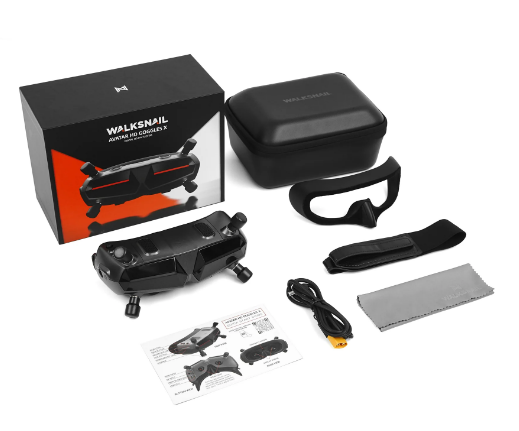
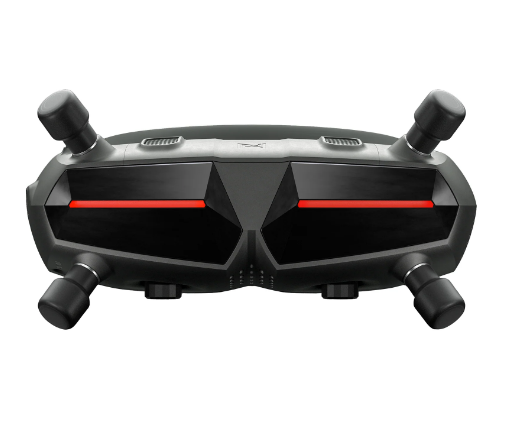
How to Connect C16 to X Goggles: Ascent VRX Setup Guide
by SkyVolt FPV Engineering Team · About the authors
In this guide
- 1. Introduction
- 2. Required Equipment
- 3. Connection Steps
- 4. Important Note
- 5. Summary
1. Introduction
The C16 uses the Caddx Ascent digital FPV system and cannot connect directly to Avatar X Goggles.
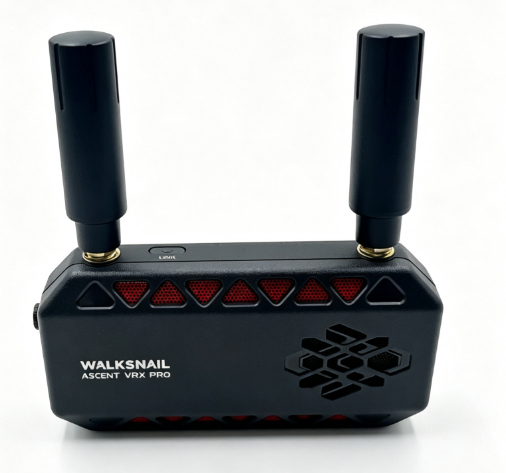
To view the live video feed, you need an Ascent VRX receiver and an HDMI-to-Mini HDMI cable.
2. Required Equipment
- C16 drone
- Ascent VRX receiver
- X Goggles
- HDMI-to-Mini HDMI cable
3. Connection Steps
Step 1: Connect the Devices
Power on the X Goggles and VRX.
Connect them using the HDMI cable:
- HDMI end → VRX
- Mini HDMI end → X Goggles
Step 2: Pair the Drone and VRX
Power on the C16 drone.
Short-press the pairing button on the side of the drone to enter pairing mode.
Short-press the pairing button on top of the VRX.
Wait for the pairing process to complete.
Step 3: Switch to HDMI Mode
Press and hold the return button on the side of the X Goggles for more than 5 seconds.
The goggles will switch to HDMI input mode.
You should now be able to view the live video feed from the C16.
4. Important Note
The VRX frame rate must be set to 100 fps or lower.
A frame rate above 100 fps may cause display issues on the X Goggles.
5. Summary
To connect C16 to X Goggles, use an Ascent VRX receiver and an HDMI-to-Mini HDMI cable. Complete the pairing process, switch the goggles to HDMI mode, and ensure the VRX frame rate does not exceed 100 fps.
Follow these steps to enjoy the C16's live FPV video feed on your X Goggles.